



Free Funnel Audit
Convert more customers today!

SEO
10 mins read

SEO
10 mins read
If you’re wondering how to export keywords from AdWords, we’re here to help you. Exporting keywords from AdWords is very simple. Just a few steps and a long list of keywords will be right in front of you.
AdWords, also known as Google Ads, is an online advertising platform where businesses pay to show their services, short ads or video content to their target audience. It follows a pay-per-click model where advertisers bid on keywords to get their business rank at the top of search results of Google, YouTube and many other platforms.
This guide explains how to export keywords from AdWords without confusion or wasted time. You will learn where to export keywords, which format to choose, and what data matters.
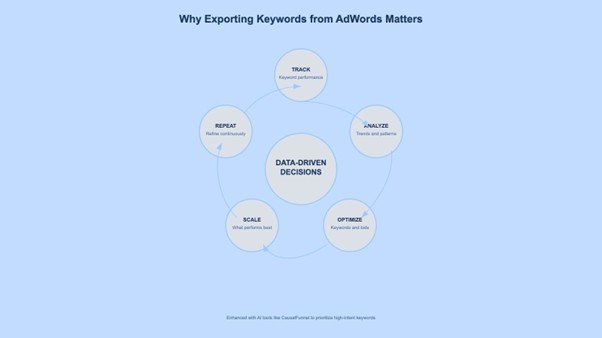
Exporting keyword data helps you move beyond the limits of the Google Ads interface. Inside the platform, sorting and comparison options remain limited for deeper analysis.
When you export keywords from AdWords, you gain control over how data is reviewed. Exports allow easier comparison across campaigns and ad groups. They also support offline work, reviews, and team collaboration.
Key benefits of exporting keywords include:
Tools like CausalFunnel enhance exports by prioritizing high intent keywords. This approach turns raw data into insights that drive smarter budget decisions.
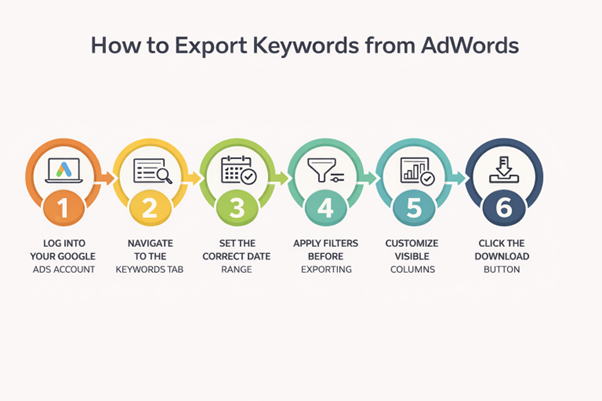
These steps show the exact process inside Google Ads. They work for single campaigns and full account exports. Each step is simple and works for single or multiple campaigns.
Step 1: Log into your Google Ads account
Sign in and confirm you are inside the correct account or manager view. Choose the campaign or account scope you want to export.
Step 2: Navigate to the Keywords tab
Click “Keywords” from the left side navigation menu. Make sure you are viewing “Search keywords,” not negative keywords.
Step 3: Set the Correct Date Range
Use the date selector in the top right corner. Choose a range that reflects meaningful performance data. Avoid exporting default date ranges without checking accuracy.
Step 4: Apply Filters Before Exporting
Use filters to narrow results by performance, match type, or status. This reduces clutter and improves analysis after export.
Step 5: Customize Visible Columns
Click the “Columns” icon above the keyword table. Add metrics like conversions, cost, and Quality Score. Only visible columns appear in the export file.
Step 6: Click the Download Button
Select the download icon above the table. Choose your preferred file format and confirm the export.
This completes how to export keywords from AdWords cleanly and without missing data. After exporting, tools like CausalFunnel help prioritize keywords before deeper analysis.
Applying filters before exporting keywords helps you work with clean and useful data. Without filters, exports often include low value or inactive keywords. This creates problems and slows down analysis.
Filters let you focus on keywords that impact cost and performance. They also reduce file size and make reviews easier.
Using the right filters ensures your export supports better decisions and prevents exporting unnecessary or misleading keyword data.
Exported keyword files include targeting and performance metrics. The available columns depend on your selected settings and date range.
Common data fields include:
This data supports reporting, optimization, and long-term planning.
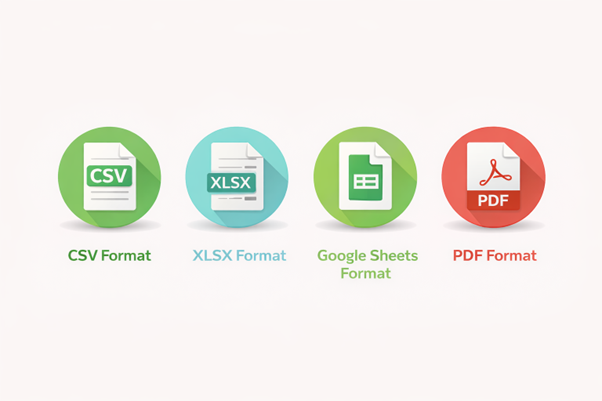
Google Ads offers multiple export formats to support different workflows. When you choose the right format, it saves time and prevents rework later.
CSV is the most flexible and widely used option. It supports large datasets without slowing down. CSV files work well for sorting, filtering, and advanced analysis. This format is best when you plan to export keywords from adwords for optimization.
Excel files organize data across multiple sheets easily. They are useful for structured reviews and internal presentations. This format works best for smaller datasets and client-ready layouts.
Sheets allow real-time collaboration with teams or stakeholders. Multiple users can review and comment without version conflicts. This format is ideal for shared analysis and ongoing reviews.
PDF exports are read only and visually clean. They work best for reporting, not analysis or optimization. Avoid PDFs when you need to edit or filter keyword data.
For most users, CSV remains the recommended default export option. CSV exports work best when paired with CausalFunnel for AI-driven keyword refinement.
When you look for how to export keywords from AdWords, often this term “negative keyword” appears.
So, what are negative keywords?
Negative keywords are search terms you do not want your ads to appear for. They prevent ads from showing on irrelevant or low intent searches. This helps reduce wasted spend and improves overall campaign efficiency.
Negative keywords matter because they protect budgets and improve traffic quality. They stop clicks from users who are unlikely to convert. Over time, this improves click through rate and lowers cost per conversion.
The export process is similar to regular keyword exports.
CSV or Excel formats work best for reviewing negative keyword lists.
Exporting negative keywords helps with deeper optimization and consistency. What more does it do?
Regular negative keyword exports keep campaigns clean and focused.
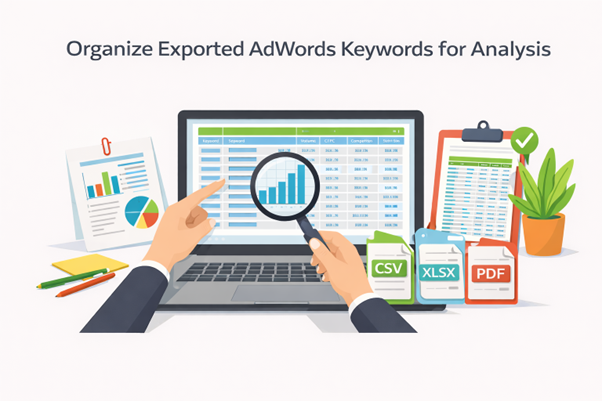
Exporting data is only useful when organized correctly. Start by removing columns that do not support decisions. Then structure the file to surface performance patterns quickly.
Helpful organization steps include:
CausalFunnel reduces cleanup work by flagging high-value and waste keywords early.
Pivot tables summarize large keyword lists quickly. They help group data without changing the original structures.
Use pivot tables to:
Conditional formatting improves visibility.
These insights become clearer when keyword priority is pre-scored inside CausalFunnel.
Exporting keywords looks simple, but small mistakes can reduce data value. Many issues appear only after the file is opened and reviewed. These problems slow analysis and often force users to repeat exports.
Common problems include:
Checking settings carefully prevents rework and ensures reliable exports.
Final Thoughts: Turn Exported Keywords into Better Decisions
Exporting keywords is not the final goal. The real value comes from acting on clean, organized data. Regular exports help uncover trends and reduce wasted spend. When you export keywords from AdWords consistently, decisions become clearer. Platforms like CausalFunnel help convert raw exports into revenue-focused actions.
Sign into Google Ads, go to Campaigns > Keywords tab, select your campaigns (clear filters if needed), click the Download button above the table, choose CSV/Excel format, and save the file. This takes under 2 minutes for most accounts.
Google Ads supports CSV, Excel (.xlsx), and TXT formats. CSV is ideal for easy import into tools like Excel or Google Sheets for analysis.
Clear any active filters, ensure you're in the correct campaign, and check permissions. Try a different browser if issues persist.
Export monthly or before major changes to track performance trends, pause underperformers, and add negatives for better ROI.
Analyze them to align ad copy and landing pages closely with top performers, boosting relevance and lowering costs.
Start using our A/B test platform now and unlock the hidden potential of your website traffic. Your success begins with giving users the personalized experiences they want.
Start Your Free Trial

Empowering businesses to optimize their conversion funnels with AI-driven insights and automation. Turn traffic into sales with our advanced attribution platform.
Trusted by Customers


©CausalFunnel Inc. All rights reserved.