



Free Funnel Audit
Convert more customers today!
SEO
10 mins read

SEO
10 mins read
Ever searched for a brand and seen an address pop up that made you pause? Wait, why is that showing?
Store locations in Google Ads often appear automatically, quietly pulled in from connected accounts. If you don’t know the source, they can keep resurfacing no matter how many times you “remove” them. That’s where things get frustrating and expensive.
The tricky part is that Google can pull locations from multiple places. This includes your Google Business Profile, Merchant Center, or linked campaigns. So, simply deleting one entry doesn’t always solve the problem. Knowing exactly where they come from is key to keeping them under control.
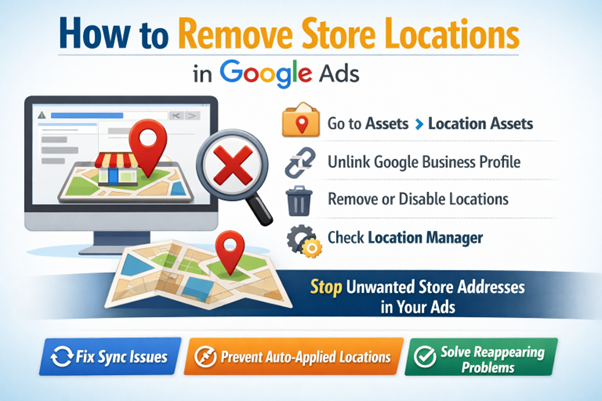
To remove store locations in Google Ads, go to Assets → Location assets, identify where the locations are coming from, and remove or disable them at the correct level. That is the short answer.
The long answer matters because many advertisers remove locations in one place and still see ads showing addresses they do not want.
This guide walks through the full process. It explains why store locations appear, how to find the real source, and how to remove them for good.
If time is short, start here.
If this sounds too simple, that is because the real challenge is not removal. The challenge is knowing what you are removing. That is where most people get stuck.
Before clicking anything, it helps to slow down and ask one honest question.
“What exactly counts as a store location in Google Ads?”
In most accounts, store locations appear through Google location ads, also known as location assets (earlier called location extensions). These show a business address, map pin, or distance text under an ad.
A common location extension example looks like this:
These locations can enter the account in several ways.
This explains why people remove a location once and see it come back. The system often pulls it from somewhere else.
Removing locations without checking the source is like locking one door while another stays wide open.
Follow these steps calmly.
You may see:
Also check whether the asset applies at:
This step answers a critical thinking question.
“Are you addressing the root cause, or just the surface-level result?
Google quietly changed how location data works in late 2025.
The result is Location Manager, now the central hub for handling business locations inside Google Ads.
If store locations feel harder to control than before, this is why.
Location Manager lives under Tools → Shared Library → Location Manager. It brings together all location-related actions that used to be scattered across assets, profiles, and campaign settings.
Many advertisers miss this section. That often leads to half-fixes and locations reappearing later.
Start here.
This screen shows all synced locations in one place. Each location displays a status such as:
Seeing everything together helps answer a key question quickly.
“Which locations are actually active right now?”
Each location row shows whether it can appear in ads.
A “Disapproved” label does not always mean something is wrong with the ad. It often relates to:
Clicking a location opens more detail. This saves time compared to hunting through campaigns.
If ads are still showing the wrong address, this is one of the first places to check.
Location Groups are one of the most useful but least understood tools.
They allow grouping locations into subsets, such as:
This matters when ads should show locations selectively, not all at once.
For example, a business with offices across India may want ads to show only metro locations. Creating a location group makes that possible without removing locations entirely.
Location Groups reduce risk. Instead of deleting data, they control visibility.
Late 2025 introduced a new Settings page inside Location Manager.
This page controls how Google-owned location imagery appears in ads. That includes map visuals and related images tied to addresses.
Advertisers now get clearer visibility into:
This matters for brands that want tighter control over how their locations appear in search results.
Turning off or adjusting these settings can reduce surprises in ad previews.
Earlier, disapproved locations were hard to fix. That has changed.
Location Manager now allows:
This is helpful when a valid location gets flagged incorrectly.
Instead of guessing what went wrong, the system now explains it. That clarity saves time and frustration.
Location Manager is no longer optional.
It acts as the control center for:
Removing store locations without checking Location Manager is like adjusting mirrors without checking the road.
The tool does not replace Asset removal. It complements it. Together, they give full control.
This is the most common setup and the most misunderstood.
When Google Ads links to a Google Business Profile, locations sync automatically. Any address inside that profile can show in ads.
Changes usually take a few hours, sometimes up to one day.
Some locations are applied at the account level. These override campaign-level changes.
This is why people say, “I removed it from the campaign, but it still shows.”
Once removed here, campaigns stop inheriting that location.
This step is essential when fixing Google Ads showing in the wrong country issues caused by shared account settings.
Some advertisers add locations directly in Google Ads instead of syncing profiles.
For clean accounts, removal is usually better.
Affiliate locations appear when ads show nearby partner stores. This is common in retail and franchise setups.
Affiliate locations are useful for big brands. For small businesses, they often create confusion.
Ask a simple question here.
“Do customers benefit from seeing partner stores, or does this mislead them?”
If the answer feels uncomfortable, removal is the right call.
Auto-applied assets can quietly re-enable locations.
Google turns these on to “help performance.” Sometimes they help. Sometimes they undo careful work.
This step prevents locations from reappearing weeks later.
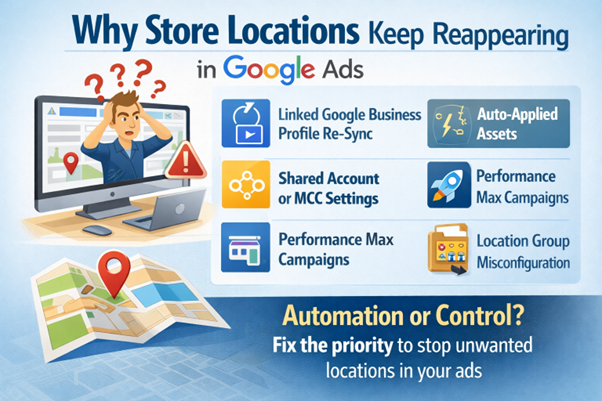
This is usually the point where advertisers get genuinely stuck. You remove store locations, everything looks fine, and then 24–48 hours later, they’re back. This behavior isn’t random. It’s the result of how Google Ads syncs, automates, and prioritizes location data.
Google Ads re-syncs with your Google Business Profile (GBP) roughly every 24 hours. If the sync is active, removed locations can reappear automatically. To diagnose this, go to Tools & Settings → Shared Library → Location Manager and check the sync status of your locations. If a sync appears stuck or outdated, unlink the Business Profile, wait for a full sync cycle, and then relink it. This reset often resolves “ghost” reappearances.
Even if you manually remove locations, auto-applied assets can quietly re-enable them. Confirm these are fully disabled under Tools & Settings → Automatically created assets, not just at campaign level but at the account level as well.
Performance Max prioritizes account-level location assets and often ignores campaign-level removals. If accuracy matters more than reach, you must control locations at the account or Location Manager level.
Location groups sometimes default to “all locations” instead of a filtered subset. One unchecked setting can reintroduce every store.
Linking more than one GBP to a single account can cause overlapping data pulls, making removals appear ineffective.
If locations keep reappearing, the fix is rarely “remove again” — it’s identifying which system is putting them back.
Most people do not search for how to remove store locations in Google Ads because they enjoy tutorials. They search because something feels broken. For example,
A location will not delete.
An address comes back after two days.
Ads still show a place that closed months ago.
This section exists for those moments.
This is one of the most common frustrations.
In many cases, the location asset is approved and applied at the account level. When that happens, campaign-level removal does nothing.
What to check:
If the location lives there, it must be removed there.
Another reason this error appears is when the asset is synced from a Google Business Profile. In that case, removal must happen by unlinking the profile, not by deleting the asset.
A helpful thinking question here is simple.
“Am I removing the asset, or am I trying to remove the source?”
This feels like Google ignoring instructions. It usually is not.
The most common cause is sync delay from Google Business Profile. When profiles are linked, Google periodically refreshes location data.
What to do:
Another cause is auto-applied assets being enabled. These can quietly restore location data after removal.
If locations keep coming back, assume automation is involved somewhere.
A disapproved location does not always mean something illegal or risky.
Common reasons include:
You can now easily and clearly see the disapproval reasons in Location Manager. That is the best place to review them.
If the location is valid, an appeal can be submitted directly. If the location is closed, removal is the correct step.
A quiet but important question here is:
“Does this location still exist in the real world?”
Google increasingly aligns ads with physical reality.
Sometimes everything is removed correctly, yet ads still show old locations.
This is often a cache or preview issue, not a live ad issue.
What to do:
Ads Preview shows what users are likely to see. Live search results can lag or personalize results based on past behavior.
Patience matters here. Reacting too fast often creates more changes than needed.
Some location changes require admin-level access.
If removal options are greyed out or missing, access is usually the reason.
To fix this:
This is common in agency-managed or legacy accounts.
If access is limited, changes will stall. That is not a platform bug. It is a permission boundary.
Most guides assume everything works on the first try. Real accounts rarely do.
Store locations interact with:
Understanding these friction points builds confidence. It also prevents panic edits that hurt performance.
When something feels stuck, it usually is. For a reason.
This part causes major confusion.
Removing store locations does not change geographic targeting.
To change where ads show:
This matters when fixing Google Ads showing in the wrong country issues. Often, the problem is targeting, not store locations.
Language settings can amplify location confusion.
If ads target English but run in regions where English users travel often, location signals may look off.
Check:
These settings do not control addresses, but they influence where ads appear and who sees them.
Removing locations changes how ads look, not whether they run.
Here is what changes:
Here is what does not change:
Conversions may dip or improve. Both outcomes happen. The key is alignment with real business goals.
Do not stop after clicking remove.
Take these steps next:
This keeps ads strong without misleading users.
In most cases, they are coming from a linked source like a Business Profile or account-level asset.
Usually a few hours. Sometimes up to one day.
Yes, but control is limited. Review asset groups and linked profiles carefully.
Only if location intent is a core driver. Many service businesses perform better without showing an address.
Start using our A/B test platform now and unlock the hidden potential of your website traffic. Your success begins with giving users the personalized experiences they want.
Start Your Free Trial

Empowering businesses to optimize their conversion funnels with AI-driven insights and automation. Turn traffic into sales with our advanced attribution platform.
Trusted by Customers


©CausalFunnel Inc. All rights reserved.