



Free Funnel Audit
Convert more customers today!

SEO
10 mins read

SEO
10 mins read
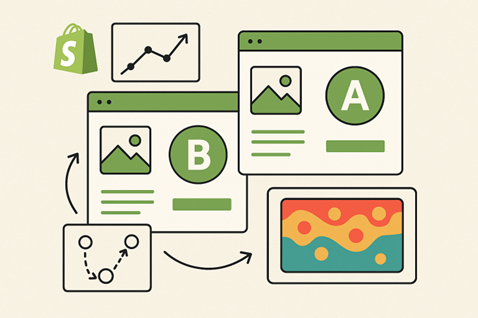
Running A/B tests without behavioral data is guesswork. The CausalFunnel Shopify app solves this by combining heatmaps, user journey tracking, and A/B testing in one interface. This guide shows you how to use visitor behavior data to identify problems, form test hypotheses, and launch experiments that directly address friction points in your store.
Most store owners test random ideas: button colors, headline variations, or layout changes that sound reasonable but aren’t tied to actual visitor behavior. The result is wasted traffic and unclear outcomes.
When you start with heatmaps and journey data, you test with purpose. You see where visitors click, where they drop off, and which paths lead to conversions. Your experiments target real problems instead of assumptions.
The workflow is straightforward: analyze behavior, identify friction, form a hypothesis, run a targeted test, and measure the result. Each step feeds the next.

Once you install the CausalFunnel app and connect your Shopify store, tracking begins automatically. After approximately three hours, the heatmap and user journey data become available for every tracked URL.
The heatmap panel displays visual overlays on actual page screenshots. Four data layers appear:
Clicks – Total clicks recorded on the page. Hotspot intensity shows concentration areas. High clicks on non-interactive elements signal usability problems.
Moves – Mouse movement and pointer activity showing where attention drifts. Heavy movement over non-clickable areas suggests visitors expect interaction there.
Scroll – Percentage of page depth visitors reach. If 100% appears, most visitors scrolled the full page. Low scroll depth on long pages means key information sits below the fold.
Engagement – Composite measure based on clicks, moves, and time on page. Useful for comparing pages at a glance.

The User Journey dashboard maps complete visitor paths from entry to exit. Instead of isolated page views, you see actual movement patterns across your store.
The dashboard groups behavior by directories:
Each directory shows total users and path count. High path variation with low user volume signals scattered navigation that needs cleanup.
Clicking into any URL reveals page-level analytics:

Both heatmap and journey tools include filters that isolate specific audience segments:
Always compare desktop and mobile separately. Behavior that works on a desktop can fail on mobile and vice versa.
Now that data is collected, use it to find friction points worth testing. Not every issue deserves an A/B test. Focus on problems that directly affect conversion paths.

High clicks on non-clickable elements – Visitors expect interaction where none exists. This creates confusion and breaks momentum. Check product images, decorative icons, or text blocks that attract clicks but do nothing.
Strong pointer movement but low clicks – Visitors inspect an area but hesitate to act. This often points to unclear affordances, weak copy, or too many choices in that section.
Low scroll on long pages – Important content below the fold never gets seen. If critical product details, social proof, or CTAs sit at 70% scroll depth but most visitors stop at 40%, those elements are invisible.
Low engagement combined with high exits – The page fails to answer visitor questions. Cross-reference this with session playback or journey paths to pinpoint where visitors leave.
High clicks on intended CTAs but low conversions – The button works and gets attention, but the action afterward fails expectations. Check what happens after the click: slow load times, confusing next steps, or broken flows.
High drop-off at specific pages – If a particular product page consistently loses visitors, something on that page destroys intent. Run a heatmap review on that URL to diagnose layout, messaging, or offer problems.
Strong product traffic but weak cart movement – Users reach product pages but don’t add to cart. The issue likely lives inside the product page layout, pricing display, shipping information, or trust signals.
Unusually high search path volume – If search usage is disproportionate to site size, your navigation doesn’t serve visitor needs. Category labels may be unclear, or important products are buried.
Scattered collection paths – High path count with low user volume in collections means exploration is chaotic. Visitors can’t find what they want using your current structure.
Account page friction before checkout – Users viewing account or login pages before abandoning suggest authentication problems or unclear account benefits.
Use session insights to spot behavioral differences across:

Returning visitors may dive into collections while first-time visitors focus on products. Paid traffic may have a different intent than organic searchers. These variations help you target tests to the segments that matter most.
Once you identify a friction point, translate it into a testable hypothesis. The structure is simple: Based on [behavior observation], we believe [specific change] will improve [metric] because [reasoning].
Observation – Heatmap shows 300+ clicks on a product image that isn’t linked. Average time on page is high, but add-to-cart rate is low.
Hypothesis – Making the product image clickable to open a gallery view will reduce confusion and improve the add-to-cart rate because visitors clearly expect interaction, but currently hit a dead end.
Test Type – Element Test Element to Change – Product image CSS selector Action – Add click functionality to open image gallery Primary Metric – Add-to-cart rate Secondary Metric – Average time on page (expect it to decrease as friction is removed)
Observation – Scroll depth data shows only 35% of visitors reach product specifications that appear at 60% page depth. User journey data reveals high exit rates on this product page.
Hypothesis – Moving product specifications above the fold will reduce exits and improve conversion rate because visitors currently leave before seeing critical information.
Test Type – Element Test Element to Change – Product specifications section Action – Reposition section higher in page layout Primary Metric – Conversion rate Secondary Metric – Exit rate
Observation – User journey shows strong product page traffic but only 12% reach cart. Of those who reach the cart, 60% exit without proceeding to checkout.
Hypothesis – Adding a cart drawer discount message at $120+ cart value will reduce cart abandonment because visitors need an incentive to complete the purchase.
Test Type – Cart and Discount Test Trigger – Cart value ≥ $120 Discount – 10% off Message Placement – Cart drawer Primary Metric – Cart-to-checkout rate Secondary Metric – Average order value
Observation – Mobile heatmap shows the Add to Cart button receives only 40 clicks, while desktop shows 180 clicks with similar traffic volumes. Scroll data confirms mobile visitors reach the button.
Hypothesis – Increasing button size and changing color to high-contrast orange will improve mobile conversion rate because the current button lacks visibility on smaller screens.
Test Type – Element Test Element to Change – Add to Cart button Action – Increase size by 20%, change color from gray to orange Target Device – Mobile only Primary Metric – Mobile conversion rate
Observation – User journey shows visitors spend an average of 8 seconds on the pricing area (based on moves heatmap), but only 25% add to cart. Exit rate spikes immediately after price inspection.
Hypothesis – Testing $29.99 versus $30.00 will improve conversion rate because charm pricing reduces psychological resistance to purchase.
Test Type – Pricing Test Price Variants – $30.00 (control) vs $29.99 (variant) Primary Metric – Conversion rate Secondary Metric – Revenue per visitor
With a clear hypothesis formed from behavioral data, you’re ready to configure and launch the experiment. The CausalFunnel app offers several test types. Choose the one that matches your hypothesis.
Use Element Tests for layout changes, button modifications, image swaps, or content repositioning.
Step 1: Basic Information

Open the CausalFunnel app, click Launch A/B Test, then select Element Test.
Click Continue to Configuration.
Step 2: Configure Test Variants

For a button position test:
For image replacement:
Click Continue to Test Settings.
Step 3: Define Position or Replacement

If moving a button:
Preview the change to confirm placement.
Click Continue to Test Settings.
Step 4: Configure Test Settings

Basic Settings:
Advanced Targeting:
Use these filters to narrow your test based on the behavior data you collected:
Test Management:
Click Save and Next.
Step 5: Review and Launch
The summary screen shows:
Use the Preview buttons to verify that both versions appear correctly.
Click Launch Test to go live.

Use Pricing Tests when the heatmap shows visitors hesitate at price display or journey data reveals exits immediately after price inspection.
Step 1: Basic Information

Search for the product by name or ID. Select it from the list.
The screen splits into two panels:
Control Group (Left) – Shows current product price exactly as it appears in your store.
Test Variant (Right) – Enter the alternate price. Must be equal to or lower than the original.
For example:
The tool validates that a meaningful change exists.
Click Continue to Test Settings.
Step 3: Configure Test Settings
Basic Settings:
Advanced Targeting:
Apply the same filters available in Element Tests. For pricing experiments, you might:
Test Management:
Click Save and Next.
Step 4: Review and Launch

Verify everything matches your hypothesis, then click Launch Test.

Use Cart and Discount Tests when journey data shows high cart abandonment or low cart-to-checkout rates.
Step 1: Basic Information

Select Cart and Discount Test.
Tips shown:
Click Continue to Configuration.
Step 2: Configure Cart and Discount Behavior

Choose Trigger:
Enter the threshold. Example: Minimum cart value of $120.
Define Discount Amount:
Write Customer-Facing Message:
Type the message customers see in the cart, or use auto-generate.
Example: “You’re $15 away from 10% off your entire order!”
Choose Display Position:
Select Cart Drawer to show a message without requiring page navigation.
Real-Time Preview:
The right panel shows two scenarios:
Both update as you type.
Click Continue to Test Settings.
Step 3: Set Traffic Split and Targeting

Basic Settings:
Advanced Targeting:
For cart tests, consider:
Test Management:
Click Save and Next.
Step 4: Final Review and Launch

Expected Results Panel – Runtime, visitor pool, confidence target, improvement target
Discount Code Configuration – Enter code text. The system creates it in Shopify upon launch. Verify:
Cart Experience Comparison:
Side-by-side view showing:
Control Group:
Variant Group:
Basic Settings Recap – All test controls listed
Targeting and Management Recap – All filters and auto-stop behavior confirmed
Click Preview Control and Preview Variant to verify appearance.
If anything needs correction, click Back to Settings.
When ready, click Launch Test to activate.
After launching, the test appears on the A/B Testing Dashboard. Quick filters at the top show Active, Paused, Stopped, and Completed tests.
Each test displays:
Early Traffic Validation – Within the first 24 hours, confirm both variants are receiving traffic according to your split. Check that targeting filters are working as intended.
Minimum Sample Threshold – Don’t evaluate results until both variants reach the minimum sample size you set. Premature conclusions from small samples are unreliable.
Confidence Level – If you enable auto-stop, the test halts automatically when statistical significance is reached at your chosen confidence level (typically 95%).
Secondary Metrics – While conversion rate may be your primary metric, watch related indicators:
The app declares a winner when:
At this point, you have three options:
Publish the Winner – If the variant outperformed the control, publish it to make the change permanent across your entire store.
Pause for Analysis – If results are unexpected, pause to review the heatmap and journey data again. You may have solved one problem, but created another.
Run a Follow-Up Test – If the improvement was meaningful but you see potential for further gains, use the winner as the new control and test another variation.
Not every test produces a winner. Sometimes the variant performs worse than the control or shows no meaningful difference. These outcomes are valuable:
Document failed tests. They prevent your team from repeating the same mistakes and help refine future hypotheses.
The CausalFunnel app’s power comes from closing the loop between observation, hypothesis, testing, and measurement. After completing a test, the cycle repeats.
When multiple friction points appear, prioritize based on:
Avoid running overlapping tests that affect the same user flow. For example, don’t test product page buttons and cart discounts simultaneously if the same visitors see both changes.
Create a simple schedule:
This cadence ensures clean data for each experiment while maintaining continuous optimization momentum.
Keep a record of each test:
This documentation builds institutional knowledge and prevents duplicate work when team members change.
Once you master the basic observe-test-measure loop, advanced workflows unlock deeper optimization.
Instead of testing isolated pages, optimize entire conversion paths.
Example: User journey shows visitors follow this path: Homepage → Collection → Product → Cart → Exit
Run sequential tests:
Each test builds on the previous winner, optimizing the complete path.
Use advanced targeting to run parallel tests for different audiences.
Example: Heatmap filtered by traffic source shows:
Run two tests:
Both run simultaneously because they target non-overlapping segments.
Device-filtered heatmaps often reveal mobile friction invisible on desktop.
Mobile-Specific Issues:
Run mobile-only Element Tests with device targeting enabled. Desktop traffic continues seeing the control, while mobile traffic enters the experiment.
When running paid campaigns, use UTM parameter filtering to test landing pages specific to that traffic.
Workflow:
This prevents campaign experiments from affecting organic visitors who have different intent and behavior.
User journey data reveals pages with unusually high exit rates. These pages need immediate attention.
High-Exit Recovery Workflow:
This workflow transforms A/B testing from random guessing into systematic optimization. Every test addresses real visitor behavior. Every result produces new behavioral data. Every win compounds the previous one.
The CausalFunnel app keeps all three capabilities: heatmaps, user journeys, and A/B testing- in one interface, so you move from insight to experiment without switching tools or losing context.
Start with your highest-traffic page. Review the heatmap and journey data. Find the most obvious friction point. Form a simple hypothesis. Launch your first test. The data will guide every decision after that.
A 1000-word article can support one main keyword. It can also support three to five related terms. It can include natural cluster terms that support the topic. The exact number depends on the flow of the article.
Every page should have one clear primary keyword. This helps search engines understand your direction. It also helps your page stay focused. A clear keyword also makes writing easier.
You should avoid adding too many keywords in one place. Too many keywords create confusion for readers. They make your page look unnatural and unhelpful. Use only the terms that support your message.
Keyword clusters work better because they support many ideas. Long-tail keywords can also help but have narrow reach. Clusters create strong context and improve your topic authority.
Keywords matter because they guide your page. AI tools still study words to understand meaning. They also check helpfulness and structure. Clear keywords support these systems.
Start using our A/B test platform now and unlock the hidden potential of your website traffic. Your success begins with giving users the personalized experiences they want.
Start Your Free Trial

Empowering businesses to optimize their conversion funnels with AI-driven insights and automation. Turn traffic into sales with our advanced attribution platform.
Trusted by Customers


©CausalFunnel Inc. All rights reserved.